
School Tycoon Customize Menu Deep Dive
Codes, colors, uniforms, and schedule tools on the left UI — spend cash where it counts.
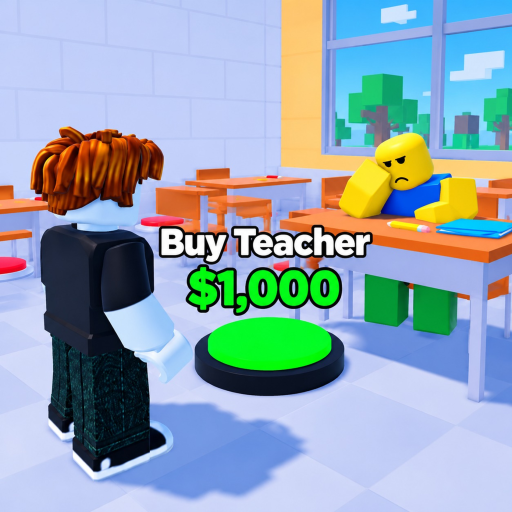
The Customize panel is the most important menu in School Tycoon by Shark Fin Studios LLC that is not a purchase pad. It sits on the left side of the screen once your tycoon loads, and it mixes three very different jobs: free money via Codes, cosmetic campus style, and schedule tools that help unlock and run field trips. New principals often treat every Customize option as equally useful — or they burn early coins on paint before desks and stampers exist. This guide maps the left UI, explains when cosmetics are safe, and shows how schedule settings differ from vanity sliders.
Pair this page with Controls for device tips, Getting Started for your first ten minutes, and the Codes Hub whenever you need the live redeem list for place 5187612424 (universe 1810365079, up to 4 players).
Where Customize lives
After you claim a plot and the tycoon UI finishes streaming:
- Look at the left stack of on-screen buttons.
- Tap or click Customize.
- Browse the sections inside — commonly Codes, color / material options, uniforms, and schedule-related tools.
- Close the panel when finished so you can see pads and homework drops again.
On mobile, zoom out slightly and pause walking before you open Customize. Accidental movement while the menu is open is a common way to miss a Redeem confirmation or walk into a neighbor’s plot on a four-player server.
If Customize is missing for a few seconds after join, wait for the plot to finish loading. Rejoin once if the left UI never appears; progress autosaves, so you will not lose pads you already bought.
Codes section — free money first
Open Customize → Codes → Type Code Here → Redeem. That path is the only correct redeem flow for Shark Fin Studios School Tycoon. Full troubleshooting and the commonly reported like-milestone strings live on the Codes Hub.
Habits that save frustration:
- Redeem as soon as you load a fresh session, before a long collect loop.
- Confirm the money counter rose before you close Customize.
- Spend the reward on throughput (early stamper, desk, or student), not on a new wall color.
- If Redeem fails, check spelling, expiry, and that you are on place 5187612424 — not another school tycoon with a similar title.
Codes are small boosts. They do not replace homework farming, but they accelerate the first upgrades after Getting Started.
Colors and materials — cosmetic by default
Color and material style options let you retheme classrooms, halls, and exterior accents. They are fun and make screenshots look intentional, but they do not raise homework drop rate, desk capacity, or trip payouts. Treat them as D-tier spending while your economy is thin.
Early trap: buying a full color pack the moment Customize unlocks, then realizing you cannot afford the next printer pad. The campus looks stylish and prints almost nothing.
Safe window for colors: after early stampers and desks are online, you have a cash buffer, and you are not mid-unlock on a new floor. Recolor between collect laps, not instead of them.
Uniforms — style, not payroll
Uniform options change how students or staff appear. Like colors, they are cosmetic-first. A matching uniform set looks great for a finished lobby tour, but it will not fix a capped student count or a missing janitor.
Spend on uniforms when:
- Core upgrade and staff priorities for the current floor are bought.
- You want a theme for screenshots or a co-op flex on a full four-player server.
- Optional gamepasses already cover comfort if you planned Robux spends — never confuse a uniform toggle with a pass perk.
Skip uniforms when the next desk or stamper is still dark on your plot.
Schedule tools — progression, not fluff
Schedule-related Customize options are the exception inside the same menu. They connect to the field-trip / bus layer. When those options appear, treat them as part of unlocking and tuning trips, not as another vanity tab.
Practical approach:
- Confirm home income works (stampers, desks, students) using Make Money habits.
- Buy bus and trip-related pads when they show on your tycoon path.
- Open Customize and set schedule options that enable or improve trips.
- Clear the bus lane, launch a trip, then reinvest the payout — details on Field Trips.
If schedule controls are greyed out or missing, you are usually too early in pad progression. Keep buying S/A upgrades and return later. Randomly toggling every slider without reading labels wastes time; change one trip-related setting, close Customize, and verify the world responded.
Cosmetics OK vs early trap — decision table
| Customize choice | Early game | Mid game | Late / complete campus |
|---|---|---|---|
| Codes redeem | Always do first | Always | Always after updates |
| Schedule / trip tools | Wait until pads unlock | High priority | Maintain and re-check |
| Colors / materials | Avoid | Small buffer spends OK | Freely theme |
| Uniforms | Avoid | Optional flex | Showcase |
Rule of thumb: if spending Customize cash delays a stamper, desk, or critical staff hire, it is an early trap. If the purchase is free (codes) or required for trips (schedule), it is never a trap.
Session checklist inside Customize
Use this every join:
- Open Customize → Codes → redeem anything new (Codes).
- Glance at schedule options if trips are in progress.
- Close the menu; run homework collects.
- Only reopen for colors or uniforms after the current floor’s income pads are green.
- After a patch, reopen Customize once to spot new buttons (Updates).
Multiplayer and UI etiquette
On servers with up to four principals, Customize is personal to your account and plot. Opening it does not edit a neighbor’s school. Still:
- Do not AFK standing on someone else’s bus lane while you browse uniforms.
- Finish Redeem before you walk away from the keyboard so you notice a failed code.
- Teach friends the Customize → Codes path; many failures come from redeeming in the wrong Roblox experience entirely.
Common mistakes
Ignoring Codes forever. Free money sits one tap away. Check the Codes Hub and redeem in Customize.
Painting before printing. Cosmetics before stampers slows every later floor.
Treating schedule like wallpaper. Schedule tools gate or improve field trips; learn them when the bus appears.
Confusing gamepasses with Customize tabs. Robux passes are separate storefront items — see Gamepasses. Customize colors are in-game money or free toggles depending on the option; read the live prompt.
Wrong place ID. If Codes never accept known strings, confirm you joined Shark Fin Studios School Tycoon at place 5187612424, not a similarly named school builder.
Related guides
- Controls — PC and mobile UI map, including Customize location
- Getting Started — first purchases before any vanity spend
- Field Trips — schedule + bus workflow
- Codes — active redeem list and failure fixes
- Gamepasses — optional Robux comfort vs free Customize tools
Master Customize once and you stop leaking early money into paint while missing the Codes and schedule systems that actually move the school forward.
Frequently Asked Questions
Quick answers to the most common School Tycoon questions.
Where is Customize in School Tycoon?
On the left-side UI after your tycoon loads. Open it to reach Codes, colors, uniforms, and schedule tools.
How do I redeem codes from Customize?
Open Customize → Codes → Type Code Here → Redeem. Confirm your money balance rose, then spend on desks or stampers. See the Codes Hub for current strings.
Should I buy colors and uniforms early?
No. Colors and uniforms are cosmetic. Prioritize stampers, desks, and staff first; theme the campus once income is stable.
Why does schedule matter in Customize?
Schedule options support field trips and the bus layer. Treat them as progression tools when those pads unlock, not as optional wallpaper.
Customize is missing or Codes fail — what now?
Wait for the plot UI to load, or rejoin once. If codes still fail, check spelling, expiry, and that you are on place 5187612424 by Shark Fin Studios LLC.